These are my notes on Azure Virtual Machines, cleaned up enough to be readable. VMs are the boring option in Azure and they’re still the right answer surprisingly often. Everything else on the compute menu takes something away from you — control of the OS, control of the runtime, control of how long a process can run — in exchange for handling the annoying parts. A VM takes nothing away and gives you the whole job: patching, images, scaling, disks, availability.
Starting with when to actually pick one, then working through the things I kept having to look up.
Should this be a VM at all?
There’s an official decision tree for this. It’s more useful as a starting point for a conversation than as something you follow literally, but the shape is right.
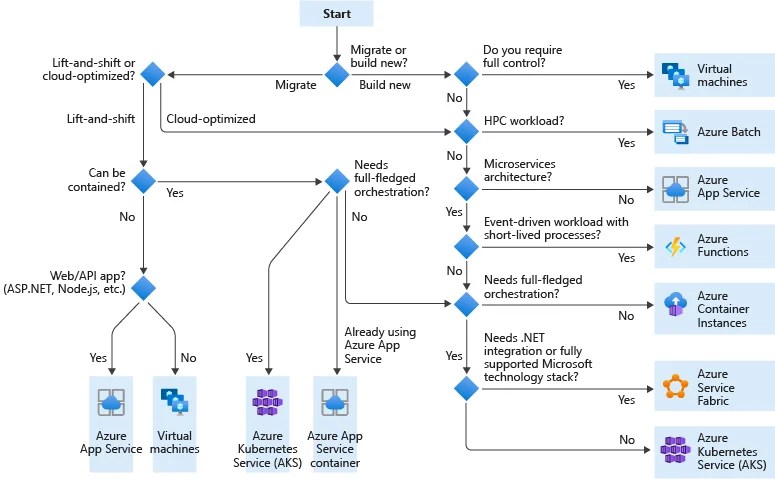
The compute decision tree. Look at how many paths end up at Virtual Machines — it’s the fallback for every branch where something rules out a more managed option. Source: Microsoft Azure Architecture Center.
Three questions do most of the work here.
Migrating or building new? If you’re lifting and shifting something that already exists, you usually end up on VMs, because the app has opinions about the machine it runs on. A specific OS version, a driver, a service that has to be installed, a licence tied to hardware. Building new gives you more room to pick something higher up the stack.
Can it be containerised? If yes, the good options open up. App Service for web and API stuff, Container Instances for a single short-lived container, AKS if you genuinely need orchestration. If no, and “no” is a fair answer for a lot of older software, you’re back to VMs.
Do you actually need full control? This is the real question. Not “would it be nice”, but “does something here require it”. Kernel modules, odd networking, licensing, an installer that assumes it owns the box, compliance rules about the host. If none of that applies, picking a VM is probably habit.
Some workloads skip the tree entirely. HPC and big parallel batch jobs go to Azure Batch. Short-lived event-driven stuff goes to Functions. Real microservices go to AKS or Service Fabric.
The comparison bit
The full feature matrix is long and mostly you don’t need it. Here’s what actually drives decisions:
| Dimension | What separates the options |
|---|---|
| What you deploy | VMs don’t care — if it runs on the OS, it runs. Everything else limits you to applications, containers, services or functions. |
| Density | A VM runs whatever you put on it. App Service packs multiple apps per instance through service plans, AKS packs containers per node, Functions on Consumption hides the host from you completely. |
| Minimum footprint | One VM works, though you need two instances for the better SLA. Service Fabric wants five nodes for production. AKS wants three. Functions on Consumption wants zero. |
| State | VMs, Service Fabric and AKS do stateful. App Service, Spring apps, Functions and Container Instances expect stateless. |
| Networking | Most things can go in a dedicated VNet, but the conditions differ. App Service needs an App Service Environment. Functions needs a Premium or App Service plan for proper hybrid connectivity. Container Instances is the one that just doesn’t do hybrid. |
Short version: VMs win on flexibility, lose on how much you have to run yourself.
Sizing
The SKU names look worse than the situation actually is. There are six shapes:
- General purpose (B, D-series and variants). Balanced CPU to memory. Dev and test, small to medium databases, low to medium traffic web servers. Most things should start here.
- Compute optimised (F-series, FX). More CPU relative to memory. Busier web servers, network appliances, batch processing, app servers.
- Memory optimised (E-series, M-series). More memory relative to CPU. Relational databases, big caches, in-memory analytics.
- Storage optimised (Lsv2). High disk throughput and IOPS. Big data, NoSQL, data warehousing, large transactional databases.
- GPU (NC, ND, NV). Rendering and video editing on NV, training and inference on NC and ND.
- High performance compute (HB, HC, H). Fastest CPUs, optional RDMA networking for tightly coupled parallel work.
B-series is worth understanding properly. Burstable VMs are for workloads that don’t need full CPU all the time. They build up credits while idle and spend them when load shows up. Good for small web servers, proofs of concept, small databases, build agents. The failure mode is obvious once you say it out loud: if the load turns out to be steady rather than bursty, you run out of credits and get throttled. It’s a cost optimisation, not a default.
You can resize a VM later but it needs a restart. Worth knowing before you’re in the middle of something.
Stop doesn’t mean stop
This one confused me for a while and it’s directly attached to the bill.
- Stopping from the portal actually deallocates. Compute is released, temporary storage is wiped, the public IP goes away unless it’s static. You stop paying for compute.
- Shutting down from inside the VM does not deallocate. Azure still holds everything for you and you keep paying a partial charge.
So if your cost-saving script shuts machines down from inside the guest OS, it isn’t saving what you think it is.
Availability
A single VM has no redundancy and its SLA depends entirely on the disk underneath it:
| Configuration | SLA | Rough downtime/month |
|---|---|---|
| Single VM, HDD | 95% | ~1 day 12 hours |
| Single VM, Standard SSD | 99.5% | ~3.5 hours |
| Single VM, Premium SSD or Ultra Disk | 99.9% | ~44 minutes |
| Availability Set | 99.95% | ~22 minutes |
| Availability Zones | 99.99% | ~4 minutes |
Two things follow from that table.
Use managed disks if you want Azure to honour the SLA for sets and zones. Azure needs control over where the storage sits to make that promise.
Redundancy is your job. Azure won’t spread VMs around for you. You create the availability set and put VMs in it, or you deliberately deploy into different zones in a region.
Fault domains and update domains
Inside an availability set, Azure spreads your VMs two ways.
A fault domain is hardware that shares a failure boundary — same power supply, same network gear. Different fault domains means one rack-level failure can’t take everything out. There are usually two to three available.
An update domain is a group of servers Azure patches together. Planned maintenance goes through them one at a time. You get up to twenty. Put twenty VMs in a set with twenty update domains and at least nineteen stay up during planned maintenance.
So why use availability sets?
If zones give 99.99% and sets give 99.95%, why would you pick sets? Because zones are physically separate datacentres, and traffic between zones is charged while traffic inside an availability set isn’t. For a chatty app moving real traffic between tiers that adds up. The better SLA isn’t free.
Related thing worth knowing: proximity placement groups keep VMs physically close to cut latency. Useful for tightly coupled tiers, and obviously pulling in the opposite direction to spreading across zones.
Scale Sets
A scale set is a group of identical VMs managed as one thing. It’s the step between running a VM and running a fleet.
Ways to scale
- Manual. You set the count.
- Scheduled. You scale on a calendar. Underrated. If you know traffic shows up at 8am on weekdays, don’t make a metric rediscover that every morning.
- Metric-based autoscale. Scale on observed load. Usual metrics are CPU percentage, inbound and outbound flows, disk reads and writes per second, data disk queue depth.
Scale sets work with availability zones, so you can get elasticity and datacentre-level redundancy from the same thing.
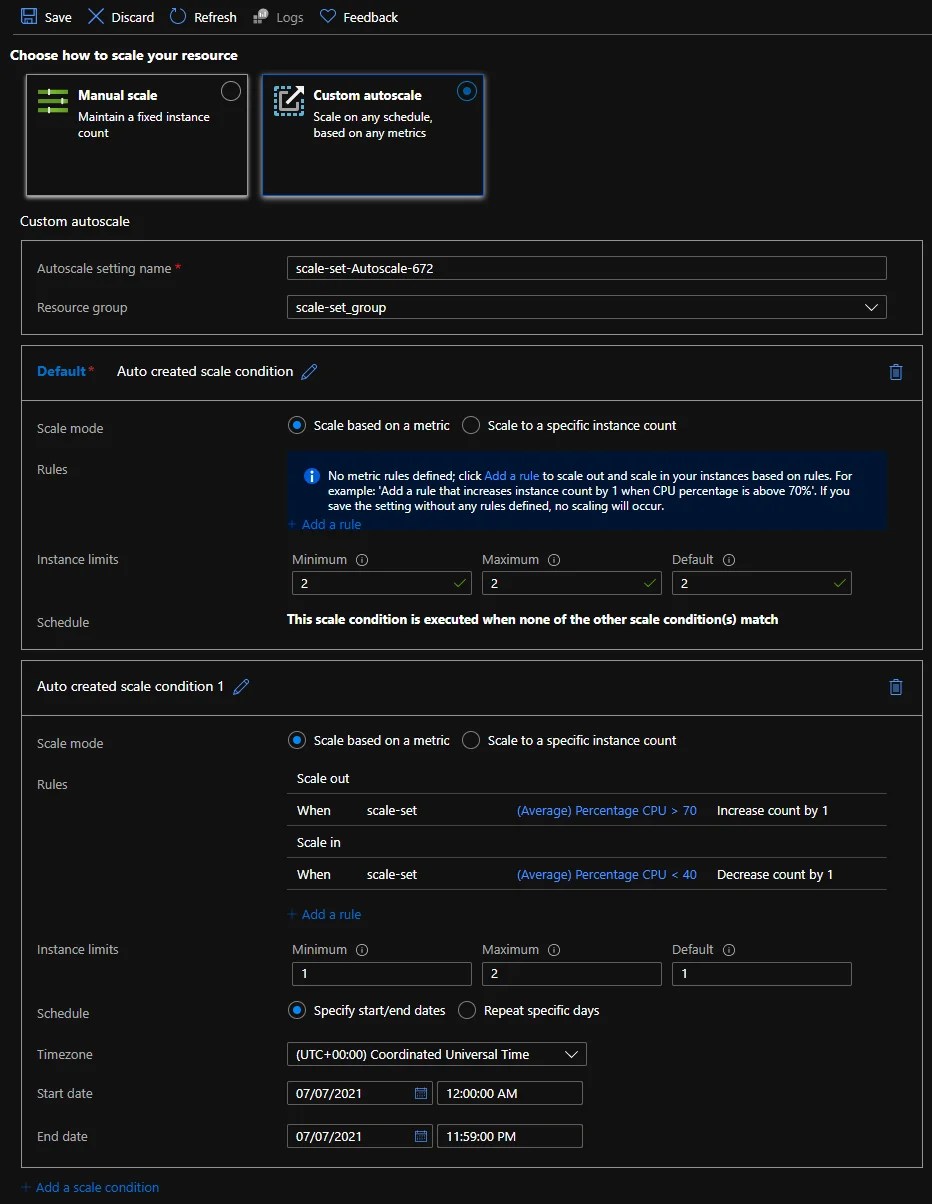
The autoscale blade. The structure is a default condition that runs when nothing else matches, plus scheduled conditions on top. The default is your safety net, so set its instance limits to something you’re happy running forever, because that’s what happens if the scheduled conditions lapse.
Notice the thresholds there: out above 70%, in below 40%. That gap isn’t random.
Writing rules that behave
Autoscale is easy to set up and easy to get subtly wrong. Three things.
Leave a gap between thresholds. Scale out at 70 and in at 40, not at 65. A narrow band causes flapping: the set adds an instance, average CPU drops under the scale-in threshold, the instance gets removed, CPU climbs again, and you’re paying for a machine that spends its whole life being created and destroyed. Azure does try to spot this and will skip a scale-in it thinks would immediately trigger a scale-out, but don’t lean on that instead of picking sensible numbers.
Scale-out and scale-in aren’t symmetric. Scale-out fires if any rule is met. Scale-in needs all rules met. Azure is deliberately quick to add capacity and slow to remove it, which is the behaviour you want, but it also means one forgotten rule can quietly hold your fleet at a high instance count indefinitely.
Duration and cool-down are not the same thing. Duration is the window the metric is measured over before being compared to the threshold, so a ten-minute duration means a short spike won’t trigger anything. Cool-down is how long to wait after acting before the rule can fire again, so the new instances have time to take load and move the metric. Duration doesn’t include cool-down.
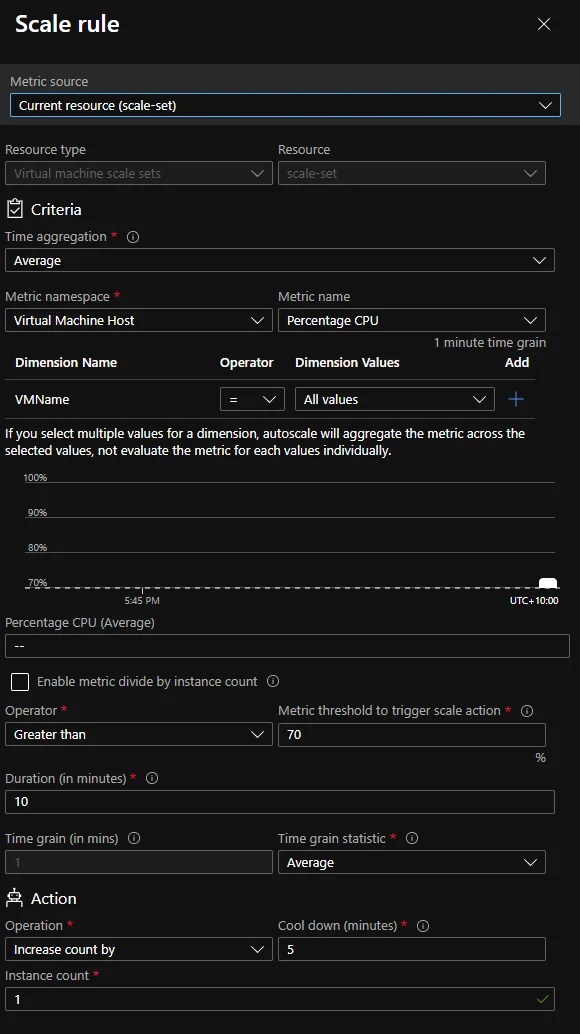
A single scale-out rule. Two fields here are easy to skim past: Duration (10 minutes) is the evaluation window and Cool down (5 minutes) is the pause after. Also read the note about dimensions — picking multiple values aggregates the metric across them rather than checking each one separately, which isn’t what I assumed the first time.
Autoscale isn’t a growth plan
This is the bit I think gets missed most. Autoscale is for handling variance, the difference between Tuesday morning and Tuesday night. It has real overhead: watching resources, evaluating rules, deciding whether to act.
For long-term growth, if you can see the trend coming, scaling manually over time is often cheaper and always more predictable. Use autoscale for the shape of the day, not the shape of the year.
Two directions
- Vertical (scale up): a bigger machine, more CPU and memory. Simple, has a ceiling, needs a restart.
- Horizontal (scale out): more machines. What scale sets are for. Needs the app to cope with it.
Upgrade policy
This decides how existing instances get updated to match the current scale set model. It matters as soon as you add something like a script extension and expect it to land on every VM.
- Automatic. Instances upgrade in random order with no availability guarantee. Fine for genuinely stateless fleets, risky otherwise.
- Manual. Nothing happens to existing instances until you do it. Most control, most drift.
- Rolling. Batched upgrades with an optional pause between batches. The sensible default for anything serving traffic.
Load balancing
Scale sets work with Azure Load Balancer for basic layer-4 traffic, and Application Gateway when you need layer-7 features like path-based routing, TLS termination and WAF.
Dedicated Hosts
A dedicated host is a physical server that isn’t shared with other Azure customers. You get real hardware isolation and control over when maintenance events happen.
The main reason people use them is compliance and regulatory requirements, not performance. If you’re reaching for a dedicated host to make things faster, check that assumption first.
Hosts live in host groups, created in a region and an availability zone. Since a host group sits in one zone, spreading across zones means creating more than one group.
Cost
Three levers, roughly in order of how much they matter.
Reserved Instances. Committing to one or three years saves up to around 72% versus pay-as-you-go. The catch is in the name. Reserve the steady baseline you’re confident about and leave the variable part on demand.
Azure Hybrid Benefit. Lets you bring existing Windows Server licences to Azure VMs. Combined with reserved instances the savings can get to around 80%. If your organisation already owns the licences this is close to free money.
Right-sizing and actually deallocating. The unglamorous one. B-series for intermittent workloads, real deallocation (not in-guest shutdown) for dev and test after hours, and cleaning up orphaned stuff.
On that last point: unattached managed disks are the classic silent cost. Delete a VM and its disks often survive. The ManagedBy property on a managed disk holds the ID of the VM it’s attached to, so if it’s null, nothing is using that disk and you’re still paying for it.
# List unattached managed disks in the current subscription.
# Check the output before deleting anything.
Get-AzDisk | Where-Object { $null -eq $_.ManagedBy } |
    Select-Object ResourceGroupName, Name, DiskSizeGB, Sku, TimeCreated |
    Format-Table -AutoSize

# Once you're happy the list is safe:
# Get-AzDisk | Where-Object { $null -eq $_.ManagedBy } | Remove-AzDisk -Force
The old unmanaged equivalent is to go through page blobs ending in .vhd and look for a lease status of Unlocked, since an unlocked page blob isn’t attached to a running VM. In practice unmanaged disks are rare enough now that migrating them is a better use of your time than auditing them.
Disks
Roles
Every VM has an OS disk and can have data disks. It also gets a temporary disk, whose size depends on the VM size and whose contents do not survive deallocation. Nothing you care about goes on the temporary disk. It’s for page files, scratch space and caches.
Managed vs unmanaged
Unmanaged disks are basically history now. Managed disks give you:
- Availability and durability handled by Azure
- No storage accounts, blob containers or page blobs to create and look after
- Three copies of your data, supporting 99.999% availability
- The SLAs above, which depend on Azure controlling placement
There’s no real reason to start something new on unmanaged disks.
Performance tiers
- Ultra Disk. Highest performance, with IOPS and throughput set independently. Comes with real limitations: no Azure Disk Encryption, no Azure Backup, no Azure Site Recovery. Check those against what you need before committing, because they tend to get discovered at the worst moment.
- Premium SSD. Performance figures are guaranteed. That’s the actual difference from the standard tiers, which come with no such guarantee.
- Standard SSD. Fine for light production and dev/test.
- Standard HDD. Backup, archive, anything that genuinely doesn’t care about latency.
Caching
Caching is available for Premium SSD and uses a multi-tier thing called BlobCache, which combines host RAM and local SSD.
- Read/Write. Default for OS disks. Important catch: the application is responsible for flushing cached data to persistent disk. If it doesn’t, cached writes can be lost.
- ReadOnly. Default for data disks. Good for read-heavy things like database data files.
- None. Recommended for log files and other write-heavy sequential work, where caching just adds overhead.
Getting this wrong on a database volume seems to be behind a lot of unexplained “Azure is slow” complaints.
Disk encryption
Two limits to know up front:
- Not supported on Basic tier VMs (Standard and Premium are fine)
- Not supported on VMs without a temporary disk
And one ordering rule: encrypt the boot volume before any data volumes. Doing it the other way round doesn’t end well.
Ephemeral OS disks
An ephemeral OS disk lives on local VM storage instead of remote Azure Storage. The trade is clean: lower read/write latency to the OS disk and much faster reimaging, in exchange for no persistence at all across deallocation.
Good fit for stateless workloads, especially scale set instances that get reimaged rather than repaired, where the OS disk is disposable anyway.
Images and Snapshots
Capturing an image destroys the VM
This one surprised me. Creating an image from a VM makes that VM unusable afterwards. It isn’t a copy, it’s a conversion.
The order:
- Prepare the VM with Sysprep on Windows or
waagent -deprovisionon Linux. This strips machine-specific stuff like hostname, sign-in details and logs so the image works as a template. - Shut down and deallocate.
- Generalize it:
az vm generalize --name <vm-name> - Create the image from the generalized VM (Capture in the portal). The image includes every disk attached to the VM.
So build images from a machine you’re willing to lose. Better still, build them from a pipeline so it’s repeatable.
Snapshots don’t
Taking a snapshot of a VHD leaves the source VM alone and running. Snapshots are point-in-time copies of one disk, not templates.
Rebuilding from a snapshot is two steps:
- Create a managed disk from the snapshot
- Create a VM from that disk
The way I remember the difference: an image is a template for making many machines, a snapshot is a recovery point for one disk.
Networking and getting software onto the machine
A VM can have multiple network interfaces, so it can connect to two subnets on the same VNet. Useful for separating management and data traffic, or for appliances sitting between network segments.
Once the machine exists you still have to configure it. There are two native options.
Custom Script Extension downloads and runs a script on the VM, PowerShell on Windows or shell on Linux. Right tool for post-deployment config, installing software and one-off tasks. It’s imperative: does what the script says, in order, once.
Desired State Configuration is declarative. You describe the state the machine should be in and DSC works out how to get there, including handling things that need reboots. The configurations are readable, which matters more than it sounds — a DSC config documents what the machine is supposed to look like in a way a 400-line install script never does. Azure Automation State Configuration is the service that manages these and pushes them out to your nodes.
Chef, Puppet, Ansible and Terraform all work fine against Azure VMs too. If your team already has a standard, use that rather than picking up a second tool just because it’s the Azure-native one.
One last thing: Azure Compute Units
SKU names tell you almost nothing about relative CPU performance. The Azure Compute Unit (ACU) is Microsoft’s index for comparing CPU performance across SKUs, a normalised number that lets you say this family is roughly this much faster per core than that one.
It’s approximate and it won’t replace benchmarking your actual workload, but it beats guessing from the name. Worth a look before assuming a newer generation letter means a faster machine.
